

I’ve wanted to do this for a long time. Specifically at 2 instances - once, when I retrieved my old Kindle e-reader years after assuming it was lost and the next time when I discovered KOReader. Even when I used an Android phone, I loved playing with custom ROMs - CyanogenMod, LineageOS etc. , especially if it was a secondary or an unused device. So when I found the now-additional Kindle, I suddenly felt like a possibility of tinkering with it had arrived. But I didn’t know what to do with it.
An year after this recovery, I discovered KOReader, thanks to the passive insistence of a dear friend .
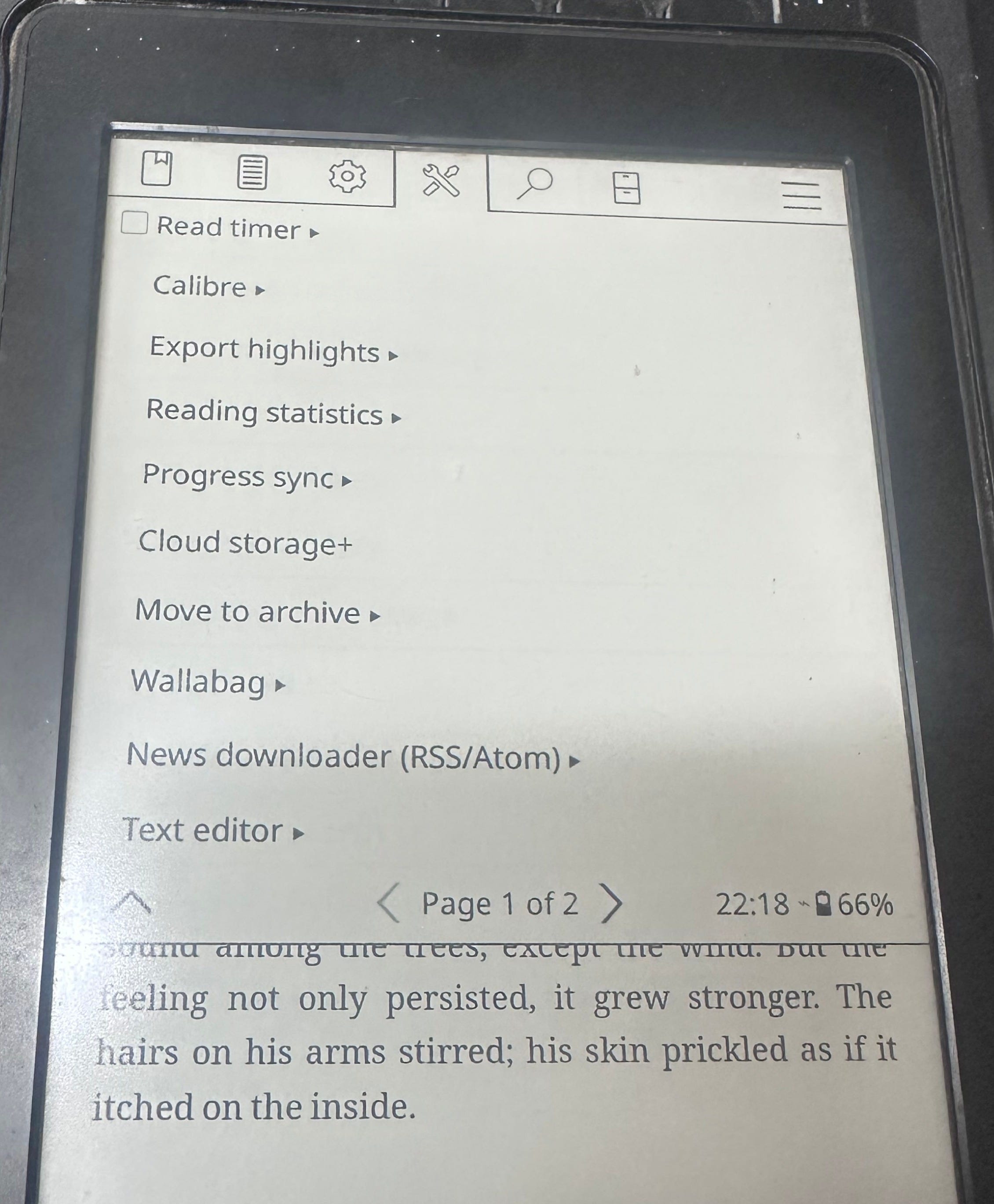
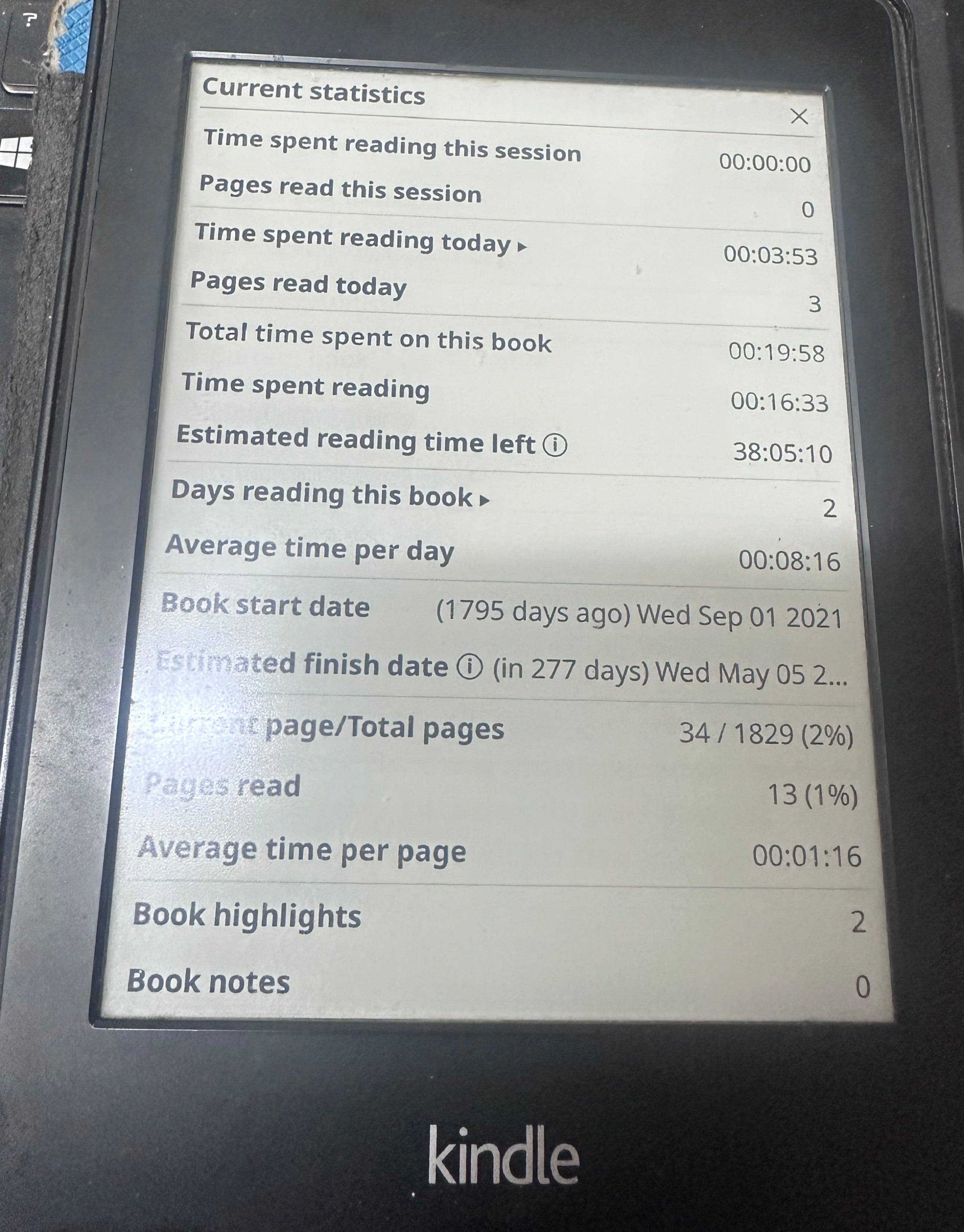
This article is not About KOReader itself . But suffice it to say that, it’s an extremely versatile e-reading document viewer with a lot of tweakable features and an amazing statistics tracker which is My favorite part atleast.
Now I had two of the ingredients I needed - a device and something to try on it.
I still lacked a key third ingredient.

Time.
Busy-ness of life took over and the book was closed for the time being.
Months passed with no action on this front. The device passed from shelf to shelf, once in plain sight and once buried amid its paperbacked brothers.
For months again, it stayed this way.
It was only today when in a spirited cleaning session, I came across this old Kindle again - uncharged and dusty. I cleaned it up and after some digging for a Microusb cable, I finally found one - courtesy, hereditary hoarding habits.
Once it was charged, this time, I found myself with a free Saturday afternoon ahead of me and it was off to the races.
I looked up the steps to install KOReader on my Kindle and I was greeted with this helpful site - https://kindlemodding.org/jailbreaking/post-jailbreak/koreader.html
So it turns out that there are two steps to effectively installing KOReader on the Kindle -
a) Jailbreak your device
b) Install KOReader on it.
⚠️ Before anything else: back up your content. WatchThis requires a full factory reset, which wipes the device.
1 . Jailbreaking your Kindle
Check your firmware version
On the Kindle: Home → Menu → Settings → Menu → Device Info (or similar, varies slightly by firmware). Note the number, e.g. 5.14.2 or 5.16.2.1.
Pick the jailbreak method based on that version
Mine was 5.12.2.2 but this is also for versions from 5.13.4 to 5.14.2 :
Install WatchThis (software only) .5.16.3 or newer → no software jailbreak exists; only Popcorn, a hardware method requiring disassembly and shorting a test point on the motherboard :-/
Installing WatchThis
1. Get the WatchThis files
Go to the official guide and download the exact package for your firmware: WatchThis (5.12.2.2) - Kindle Modding Guide.
For me, this was the file. It contained a device-specific ZIP, demo.json, and later a hotfix .bin file. Download all of it while your kindle is still on stock firmware.
2. Factory reset & enter demo mode
Factory reset choosing English (United Kingdom) as the locale. DO NOT SETUP Wi-Fi throughout this process.
In the search bar, type
;enter_demoexactly the way I’ve given it. The Kindle should be manually rebooted after this and it should go into demo mode.Skip Wi-Fi setup again, enter some random store registration info, skip “demo payload” search, choose “standard” demo type, press Done (do not sideload yet i.e. Do not add any files yet).
If you hit a misconfiguration lock screen: 2-finger tap bottom-right, then swipe left to bypass it.
Type
;demoin the search bar. This opens the demo config menu. NOW select Sideload Content.
3. Install the jailbreak payload
Connect to this PC (it’ll remount as the
E:drive again).At the root of
E:\, create a.demofolder.Copy the device-specific ZIP and
demo.jsoninto.demo\, and create an empty.demo\goodreads\folder.Eject, press Done on the Kindle to install (if it errors, hard-reboot and retry).
Exit the demo menu, tap the store button , select Help & User Guides , followed by Get started. The device reboots and runs the jailbreak script.
4. The jailbreak needs a hotfix to actually set things in place it seems
Copy
update_hotfix_watchthis_custom.bin(from the WatchThis zip) to the root ofE:\.On the Kindle: Settings and select Update Your Kindle.
After it reboots, type
;uzbin the search bar to re-enable USB mass storage (demo mode disables it by default).
2. After jailbreak: install KUAL + MRPI, then KOReader
Once jailbroken, install KUAL (launcher) and MRPI (package installer). These two are prerequisites for KOReader.
Download the
kindlepw2KOReader package (Since mine was Paperwhite 2 and my firmware was ≤5.16.2.1.1) from the KOReader releases page.Connect Kindle via USB, unzip the package, copy the
extensionsandkoreaderfolders to the Kindle’s root directory (merge when prompted).Eject the kindle, open KUAL, and launch KOReader from the menu.
Now, if you’ve followed along, congratulations!! 🥳 You now have KOReader on your Kindle.
Will your purchased Kindle books still be available now? I don’t know this yet. I’ve not yet enabled Wifi on this Kindle post KOReading.
Then where can I get books from? There is an Extensive collection on https://gutenberg.org for starters! But if you’re this motivated about an Ebook reader, I…err..think you will sort this out. 👀
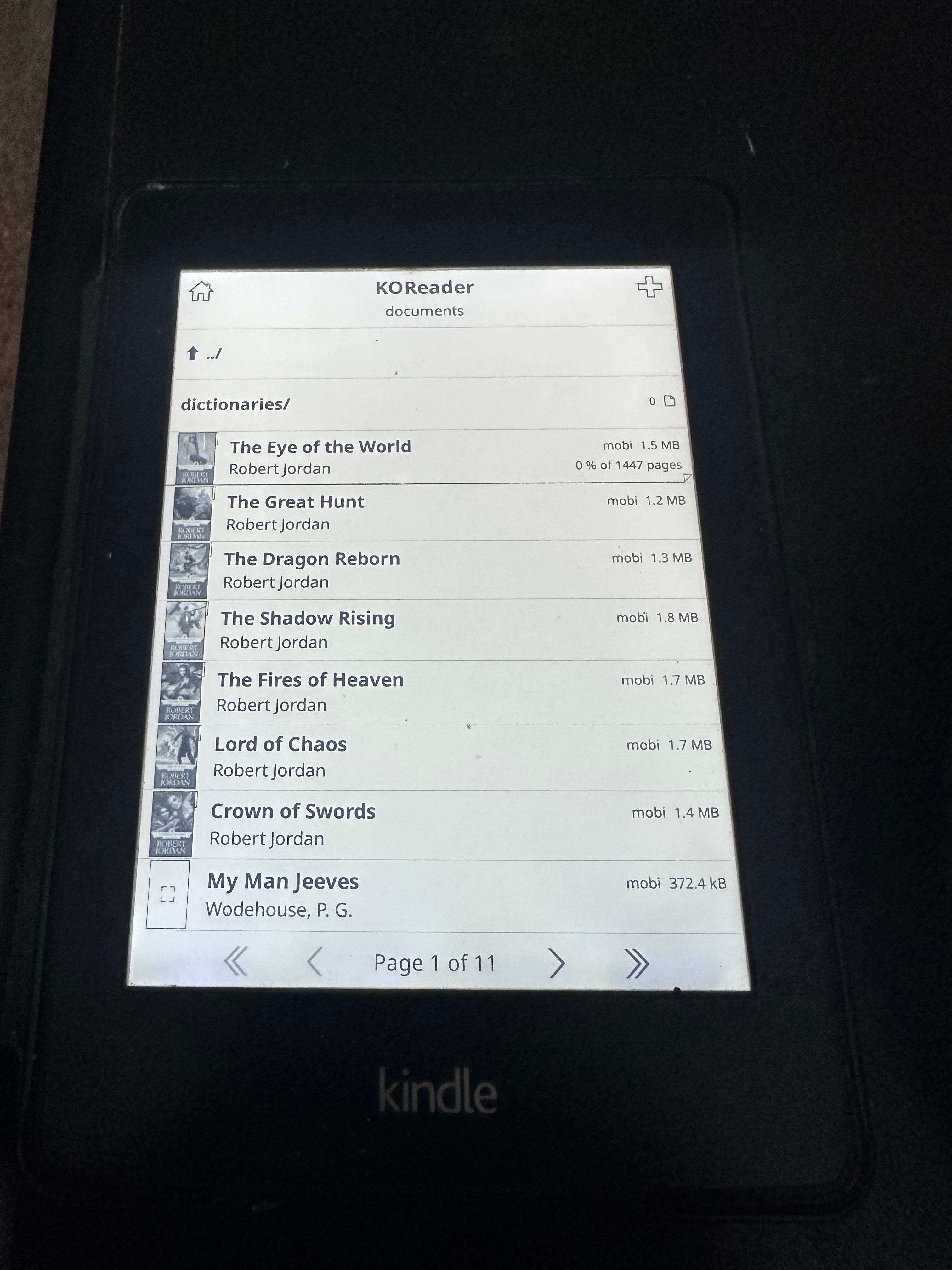
Here are some screens post my successful experiment -
Happy reading! Feel free to reach out to me if you have trouble during the process!
And if you liked this post and want to read more, subscribe to Everything Python